Category: CSS

  • TypeMetal’s Unique Editing Engine

    One of TypeMetal’s most unique features is in large part invisible: a modern HTML editing engine unlike any other, that I’ve devoted over a year and a half to developing and refining. Appreciating the motivation and design philosophy behind TypeMetal’s engine will help you understand the challenges TypeMetal is uniquely positioned to solve, and get a feel for what it is and isn’t.

    I developed TypeMetal to be an app I’ve long wanted to have: a Mac-native writing tool that lives and breathes modern, streamlined, professional-grade HTML as its model. I wanted an easy way to dash off bits of top-quality HTML, without having to manually manage the mechanics of markup syntax and formatting. I also wanted an app that helped me to develop, and consistently apply, semantic CSS styling vocabularies, in the course of producing a large, stylistically cohesive body of work — such as TypeMetal’s User Guide, or the News posts on this site. It’s struck me as odd that writing HTML by hand, or writing shorthands other than HTML to get an HTML result, is still so common. Can’t we do better? I felt compelled to find out, and TypeMetal 1.0 is the first result.

    Needless to say, in the process of developing TypeMetal, I quickly found out why the app I’d wished for hadn’t already been written: There were a number of fundamental challenges to solve. In particular: Undoable editing of a tree-structured document model, such as HTML’s, is a whole level of complexity beyond working with a flat attributed-text model. Every operation — from applying styling (which, in HTML, means wrapping content in elements) to simple Find and Replace — is substantially more complicated than with simple, linear text. WebKit provides the field-tested HTML parsing, layout, and rendering that underpins TypeMetal, but TypeMetal’s editing functionality and UI are entirely its own. The challenges inherent in their development were many, but the rewards of persisting through tackling them have been great — for much of HTML’s utility and expressiveness lies in its inherently tree-structured document model. Sectioning of content for layout and styling depends on that model, and there is great potential, both in use and yet-to-be-fully-realized, for automated document processing to leverage it.

    One thing I haven’t done with TypeMetal is try to solve every possible use case for an HTML development tool. Solving problems well in software requires focus. Without it, you get lost in a swamp of intractable generality and likely don’t find your way out to a finished or comprehensible product. I didn’t want my efforts to end that way.

    TypeMetal’s focus is content editing: providing a helpful, productive, and rewarding way to write the text, interleaved with images and other media, that is a website’s entire reason for existing. That’s what TypeMetal really strives, above all else, to shine at.

    Within that focus, I’ve gone to great lengths to make TypeMetal as general as possible, all the way down to its foundations. TypeMetal will work with any HTML file or fragment you give it, and puts the expressive power of HTML’s entire element and attribute vocabulary at your fingertips. Block Mode’s exacting selection capabilities make some remarkably general structural editing feats possible, making it much easier to assemble trees of nested <section>s, <div>s, and other elements. You could leverage this capability to build or prototype a page template for a site, but that’s straying a bit outside the realm of what TypeMetal is really designed to be best at. Similarly, TypeMetal doesn’t attempt to be a visual layout editor or CSS editor. Those problem domains have been well explored by other apps, and have more to do with establishing or changing the look of a site than producing the content that the site will host. TypeMetal’s entire focus is crafting exacting HTML content that meets your highest standards, and is suitable for use either as standalone pages, or with whatever templating, styling, and content management system you use. (As I’ve mentioned before, I write all the News posts for coherencelabs.com using TypeMetal, then incorporate them into my WordPress workflow as described here.)

    The first version of TypeMetal has gone a very long way toward achieving my goals. I have exciting things in store for the future, but have also been greatly enjoying the chance to finally use the app that TypeMetal already is. I hope many others will find it as handy and helpful as I do. Your support means everything to TypeMetal’s future (Thank you!), and I’m committed to continuing to refine its user experience based on users’ feedback.

    Whether you’re using TypeMetal already, or weighing the possible purchase and looking to learn more about it, please accept this invitation to drop by the TypeMetal Support Forum, where I reply to questions daily. It’s an excellent place to post any questions you may have about what TypeMetal is and isn’t, drop suggestions for ways it could be extended, and get all manner of other help.

    I also encourage you to subscribe to the RSS feed for News posts like this one. And if you use Twitter, please feel invited to message us @CoherenceLabs!

    Happy content editing!
  • A Sample Snippet Set

    Snippet sets underpin one of TypeMetal’s most powerful features: its ability to help you extend HTML to suit your own usage patterns and writing semantics. The snippets you create become first-class objects — peers to HTML’s standard element set, that you can choose just as easily as the standard elements in TypeMetal’s “Insert…” or “Wrap in…completion UI.

    A “snippet” is nothing more than a clipping of HTML, that you can insert into a document or wrap around some selected content. A snippet can contain bits of boilerplate text enclosed in an arbitrarily complex tree of HTML elements, if you like — or, it can be as simple as a single HTML element with optional “class” and “id” attributes. Simple snippets are especially useful, for helping you consistently apply the class and id names that trigger your CSS styling magic, and TypeMetal makes them super easy to create and use.

    A simple snippet can be reduced to a very compact shorthand that fully describes it at a glance. TypeMetal displays, and provides for you to edit and input, this convenient shorthand, making simple snippets a snap to create and modify. If you’ve done even basic work with CSS, things like “.box”, “div.box”, and “section#main.content” probably need no explanation. (But if they do, it’s all explained here.)

    A concrete example might help. Let’s look at the snippet set I’ve been using to write TypeMetal’s in-app Help (which is published online as the “TypeMetal User Guide”). You can view the snippet set or download a copy at this link. TypeMetal stores snippet sets in a JSON-based file format that’s documented here.

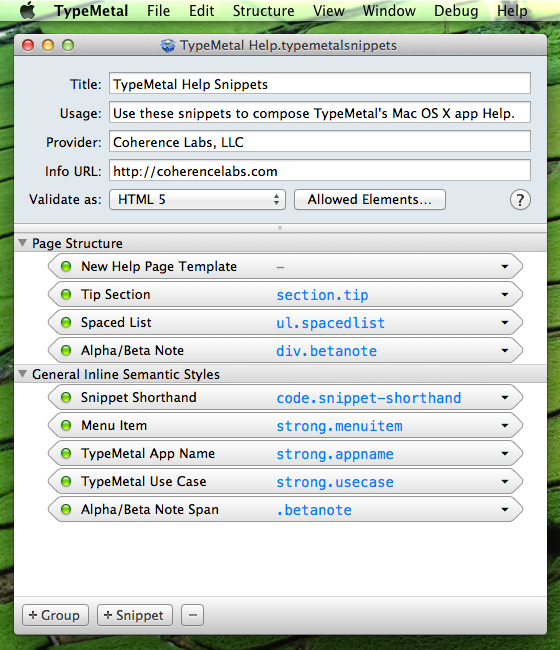
    When opened using TypeMetal, the snippet set looks like this:

    a window showing TypeMetal Help Snippets opened in TypeMetal

    The top of the window hosts some descriptive info that helps to identify the snippet set and its intended usage. Snippet sets are designed to be easily shared — via version control systems, simple download, or other means — to help groups of contributors collaborate with consistency on a body of content. So it helps to be able to identify your snippet set and tell people a little bit about it.

    Below this metadata area, we see that this set contains two groups of snippets: “Page Structure”, followed by “General Inline Semantic Styles”. Groups exist simply to help you organize snippets for your convenience. They collect your snippets into submenus, that get added under the “Structure” menu’s “Insert…” or “Wrap in…” item, but they don’t affect how your snippets appear in TypeMetal’s completion UI. All snippets and HTML elements are peers in the completion list.

    You can see that all but one of the snippets in this set can be described purely using shorthand. A snippet’s shorthand can be edited simply by clicking on it — the shorthand becomes editable, and TypeMetal guides you to make sure it follows the simple shorthand syntax.

    If you want to, you can expand your view of any snippet, by toggling the disclosure button at its right end, or by double-clicking an inactive part of the snippet capsule. But for a simple snippet, all this does is show you the correspondingly simple HTML markup. A simple snippet’s shorthand alone is enough to completely describe it.

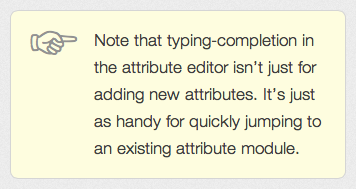
    Let’s look at an example. I use a simple snippet that creates a <section> element with a class of “tip”, to mark up interesting user tips. Wrapping each such tip in a “tip” section enables me to style them consistently using CSS — using a rounded-rect box and a pointing hand glyph to call them out and set them off from the enclosing content flow:

    an example tip, styled using CSS

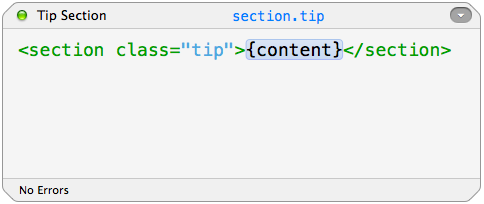
    Here’s what the “section.tip” snippet looks like when expanded:

    expanded simple snippet

    The “{content}” placeholder capsule indicates that the snippet (like all simple snippets, and some general snippets) can be wrapped around a selection in your document. The wrapped content will go where the “{content}” placeholder sits.

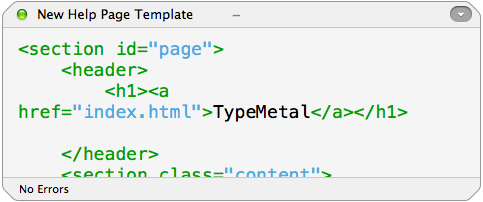
    Expanding a non-simple snippet shows the markup that defines it. In my TypeMetal Help snippet set, I have a snippet I use when creating a new page, that inserts the necessary page-structure boilerplate into a new, empty document’s <body>:

    expanded general snippet

    The full snippet body (which you can see in the snippet editor by scrolling) is:

    <section id="page">
        <header>
            <h1><a href="index.html">TypeMetal</a></h1>
    
        </header>
        <section class="content">
    
            <h2>{content}</h2>
    
    
        </section>
        <footer>
            <p>&#169; Copyright 2011-2013 <a title="Coherence Labs" href="https://coherencelabs.com">Coherence Labs LLC,</a> All Rights Reserved. Made with <a href="about-the-app-name.html"><strong class="appname">TypeMetal</strong></a>.</p>
        </footer>
    </section>

    Whitespace and newline placement isn’t important in a snippet body, by the way. When you insert a snippet in an HTML document, the inserted snippet automatically takes on the same formatting that TypeMetal applies to the rest of the document (either the document’s HTML formatting preferences, or your user HTML formatting preferences — whichever the document specifies). So use newlines and spaces however you like when editing a snippet (outside of element tags).

    General snippets can be useful, but simple snippets are probably what you’ll use most of the time. Slapping a “class” attribute onto an existing, standard HTML element is usually all you need to do, to coin a little custom styling vocabulary of your own. Consistently applying the class attribute — which the snippet makes quick and easy — enables you to style every such occurrence consistently, with the ease and versatility that centralized CSS styling provides.

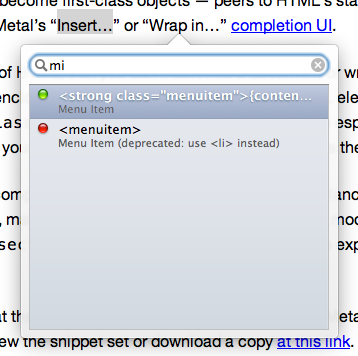
    Here’s an example of choosing the snippet I use to mark up menu commands in TypeMetal’s Help. After I invoke the “Wrap in…” command with Control+/, typing “mi” and [return] is all it takes! (Note that TypeMetal is smart enough to prefer the allowed <strong class="menuitem"> snippet over HTML’s <menuitem> element, which isn’t allowed in this particular context.)

    choosing a user-defined snippet, in TypeMetal's completion UI

    I hope this introduction has helped illustrate the purpose and power of TypeMetal snippet sets. You can learn more about snippet sets in TypeMetal’s online User Guide. (One easy way to create a simple or complex snippet, by the way, is from a selected example in an HTML document.)

    TypeMetal is available exclusively on the Mac App Store. If you have any questions at all about it, please feel free to tweet us @CoherenceLabs — or chime in or start a new topic on the TypeMetal Support Forum. Follow our News feed for more illuminating short articles like this.

  • Introducing TypeMetal

    I’m delighted to announce the release of Coherence Labs’ very first app — a groundbreaking HTML editor for the Mac called TypeMetal, that’s now available on the Mac App Store.

    TypeMetal Application Icon

    At TypeMetal’s core is an innovative new editing engine, a year and a half in the making. Built atop WebKit’s heavily field-tested parsing, layout, and rendering foundation, TypeMetal’s editing functionality provides a suite of precise, fully undoable operations designed to work intuitively and give you full control down to the last element and character. Most remarkable of all, TypeMetal provides this degree of control while you work with fully rendered pages, not with HTML markup.

    Developing TypeMetal has been a labor of love — a much-enjoyed challenge of building an app that I couldn’t wait to use myself — and I’m thrilled to finally be able to release it to the world for others to use and enjoy.

    In addition to the summary and 60-second intro video on the product page, you can browse TypeMetal’s entire User Guide — the same in-app Help that comes with TypeMetal — online. One of the best parts of this project has been getting to write TypeMetal’s User Guide … using TypeMetal!

    Now that the wraps are off, I’ll be posting here more often — offering tips and bits of conceptual background that will help you get to know TypeMetal and its capabilities, and learn how to leverage them to greatest advantage. I’ve also added a public support forum to the site. It’s the place to go to get questions answered, report surprises, and send us feedback. And for quick questions, you can also reach us on Twitter @CoherenceLabs.

    I truly hope TypeMetal will delight people. I’ll be spending the next few weeks making sure its pioneering first users are happy with their purchase and any serious issues that arise get resolved quickly. From there out, I have many more great improvements in mind for the future. I am absolutely dedicated to making TypeMetal the best it can be, and an app people enjoy using. Stay tuned to our RSS feed — there’s more to come soon!