Settings
Tagboat’s settings let you customize the way it works. Each managed folder has settings that you can view and modify.
To see a folder’s settings, mouse over the folder in the “Managed Folders” view and click on the gear icon (⚙️) that appears. Alternatively, you can select the folder and type [shift]+[return].
In the popover that appears, you can view and modify the settings that Tagboat is using for the folder.
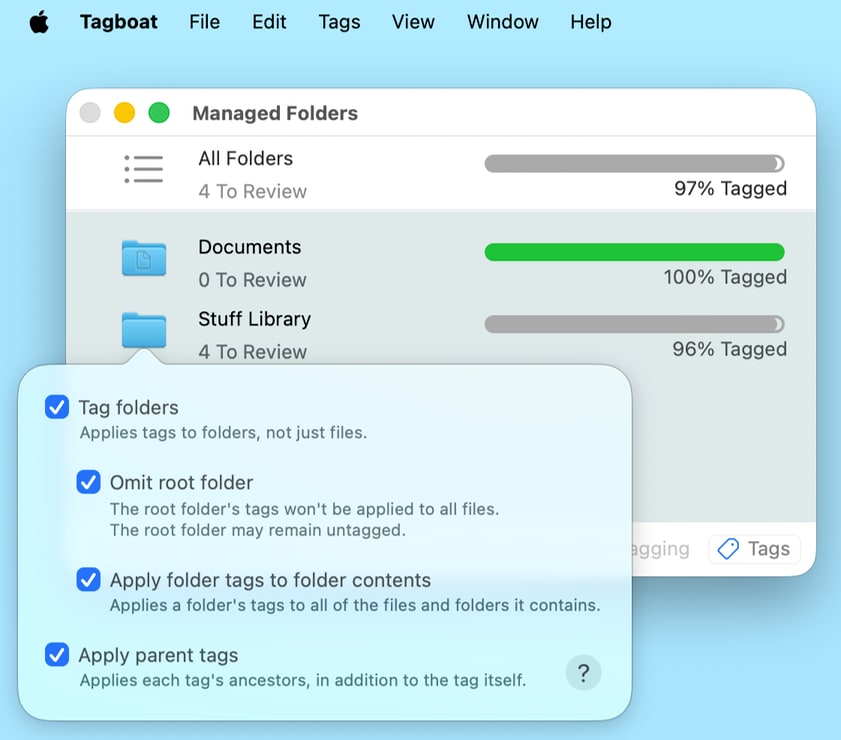
“Tag folders” lets you decide whether you want to tag folders in this area of your file system. When it’s checked, Tagboat prompts you to tag folders as well as ordinary files, and its progress display counts folders among the set of files you intend to tag. When “Tag folders” is unchecked, Tagboat disregards folders and prompts you to tag ordinary files only.
When “Tag folders” is checked, you can customize folder-tagging behavior using two additional settings:
When “Apply folder tags to folder contents” is checked, Tagboat automatically adds each folder’s tags to all of the files and folders it contains, all the way down the file tree. This makes the affected files show up in Finder searches for those tags, whereas otherwise only the folder and any files you had manually applied those tags to would appear in tag search results. If you don’t want this behavior, simply uncheck “Apply folder tags to folder contents”.
“Omit root folder” lets you choose to leave the top-level managed folder out of this folder-based tag inheritance. When this setting is checked, your files and folders won’t automatically inherit the root folder’s tags, and Tagboat won’t count the root folder among those you intend to tag.
“Apply folder tags to folder contents” becomes available when you purchase Tagboat Pro.
“Apply parent tags” tells Tagboat to automatically apply ancestor tags when a given tag is applied to a file or folder. This is useful if you arrange your tags in a tree to define nested classifications. Finder searches would normally be unaware of the relationships among tags that you define in Tagboat. Enabling this setting causes Tagboat to explicitly add the inherited tags to each file, so that a Finder tag search for a given ancestor tag will show all files that have any of its descendant tags applied. For example, if you make “Daisy” a child tag of “Flower”, every file you tag with “Daisy” will also be tagged “Flower” and will thus show up in search results for the “Flower” tag.